Troubleshooting
Issues with terrains
Terrains come in two types, each requiring its own installation method:
- Custom: Installed like regular mods by moving the
.vpkfile into the language folder. - Standard (from Dota 2): Installed by moving the
mapsfolder, which containsdota.vpk, into the language folder.
IMPORTANT
- Do not move or rename the
dota.vpkfile inside themapsfolder. - Standard terrains only display in matches. They don't work in "Demo" mode.
- Make sure to disable the Dota+ terrain in the game settings, otherwise it will conflict with the mod.
No changes visible / mod not working
If mods don't show up after installation, follow these steps:
1. Prepare the folder
- In Steam: right-click Dota 2 → Manage → Browse local files.
- Go to the
gamedirectory. - Create folder
dota_123.
2. Check file names
Move your .vpk files into dota_123. Make sure they follow the naming rules:
- Valid range:
pak01_dir.vpk—pak99_dir.vpk. - Not allowed: arbitrary names (e.g.,
mod.vpk,pak120_dir.vpk) or special characters (exclamation marks, etc.). - If you have more than 100 mods and run out of numbers, use the VPKMerge tool.
3. Launch options
Make sure the correct command is set in Dota 2's launch options:
- In Steam: right-click Dota 2 → Properties → General.
- In the "Launch Options" field, enter:
-language 123 - Make sure this command comes first and is the only one (unless you're using other required parameters).
Compare the result with the image below: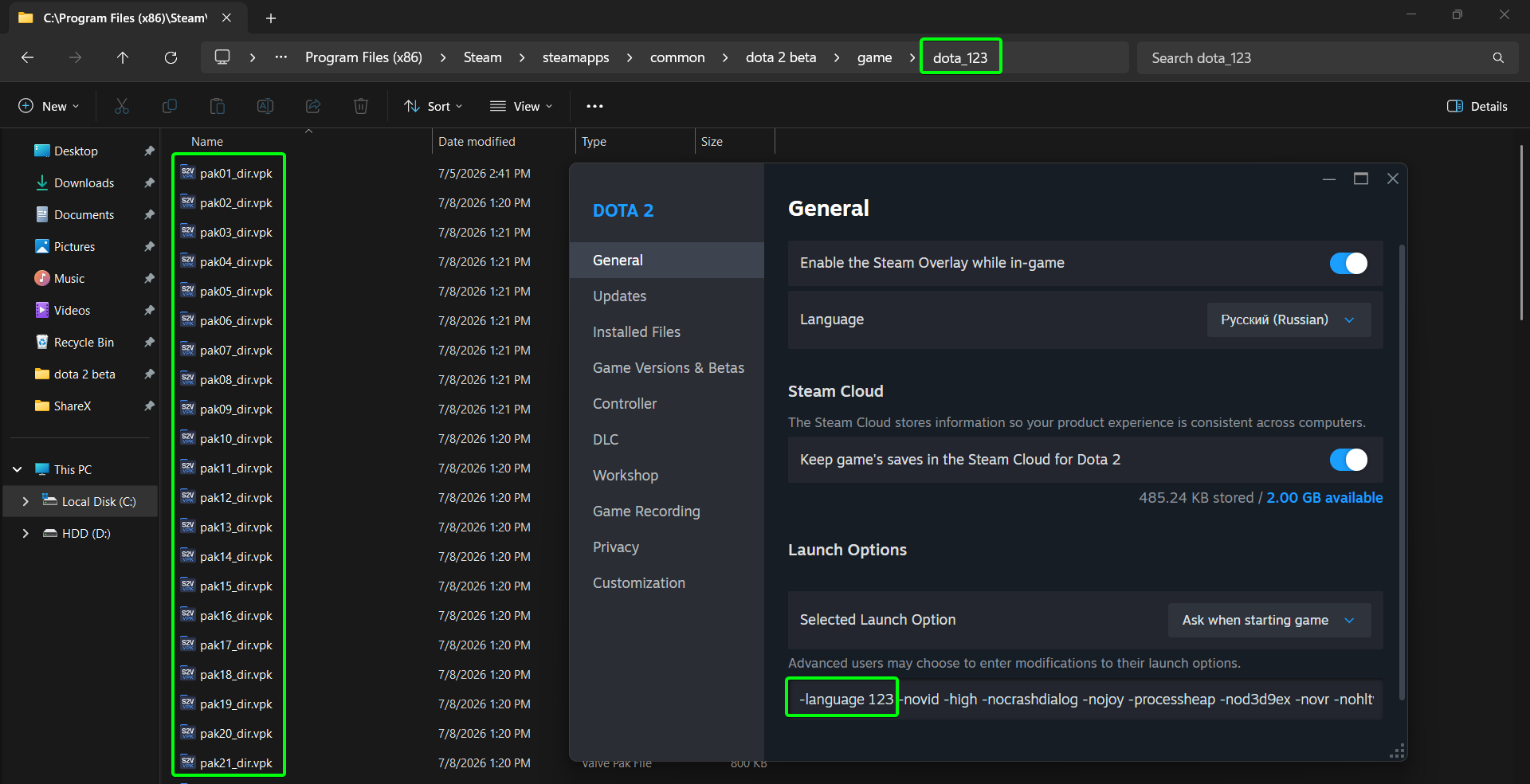
VAC error
If a VAC error message appears when launching the game or searching for a match, don't panic. This is a Dota bug and is not caused by using mods.
How to fix:
- Open Steam.
- Right-click Dota 2 → Properties.
- Go to the Installed Files tab.
- Click Verify integrity of game files.
Once the check is complete, restart the game.
Site download freezes
If the download stalls, try:
If that doesn't help:
- Refresh the page
- Open the console with
Ctrl + Shift + J - Start the download via the cart
- Wait for the download to finish, or for it to freeze again
- Copy the console output and send it to Discord along with a description of the issue
Website won't load
If the site does not load, try:
Emblem is not displayed
If the installed emblem is not showing up in-game, follow these steps:
- Open the console in the game before the match.
- Enter the command:
r_draw_selected_ring 0 - Immediately after, enter:
r_draw_selected_ring 1
If this didn't help:
- Make sure that the
Misc Optimizationmod is disabled inside the Minify.
Shader Issue
If a shader in the game is displaying incorrectly and appears checkered, follow these steps:
- Open the graphics settings in the game.
- Disable the
World Lightingsetting.